Cloudflare
It is possible to use Cloudflare together with Clonable, but this requires a specific configuration.
If the configuration is not set up correctly, this can lead to errors such as 502, 504, or ERR_TOO_MANY_REDIRECTS.
TL;DR
When placing Cloudflare in front of a clone:
- contact Clonable
- make sure Clonable connects to the origin IP of your server
- place Cloudflare in front of the clone
- set the SSL/TLS encryption mode in Cloudflare to at least Full
Clonable needs to internally adjust several checks and settings for this setup. These settings are not accessible from the dashboard.
Why this is necessary
Many websites use Cloudflare for additional security, such as:
- DDoS protection
- WAF/firewall functionality
- Bot and spam filtering
- Rate limiting
Because Clonable operates as a reverse proxy, all clone traffic is routed through the Clonable proxy.
As a result, Cloudflare sees a large amount of traffic originating from Clonable instead of from individual visitors.
In some cases, this causes Cloudflare to block traffic from the Clonable proxy. This usually results in errors such as:
502 Bad Gateway504 Gateway Timeout- blocks triggered by the WAF/firewall
The solution is to let Clonable communicate directly with your origin server instead of with the Cloudflare proxy.
Recommended setup
The most stable configuration is:
Visitor → Cloudflare → Clonable → Origin server
In this setup:
- Cloudflare protects the clone
- Clonable communicates directly with the origin server
- Cloudflare no longer blocks traffic from the Clonable proxy
Placing Cloudflare in front of the clone
If you only use subfolder clones, these settings are usually not required.
For clones running on a separate domain or subdomain, it is recommended to place Cloudflare in front of the clone.
Examples:
example.com/fr/→ usually not requiredfr.example.com→ recommendedexample.fr→ recommended
This gives each clone its own Cloudflare security layer.
DNS configuration
Within Cloudflare, go to:
- DNS → Records
Configure the DNS records so they are proxied through Cloudflare (orange cloud enabled).
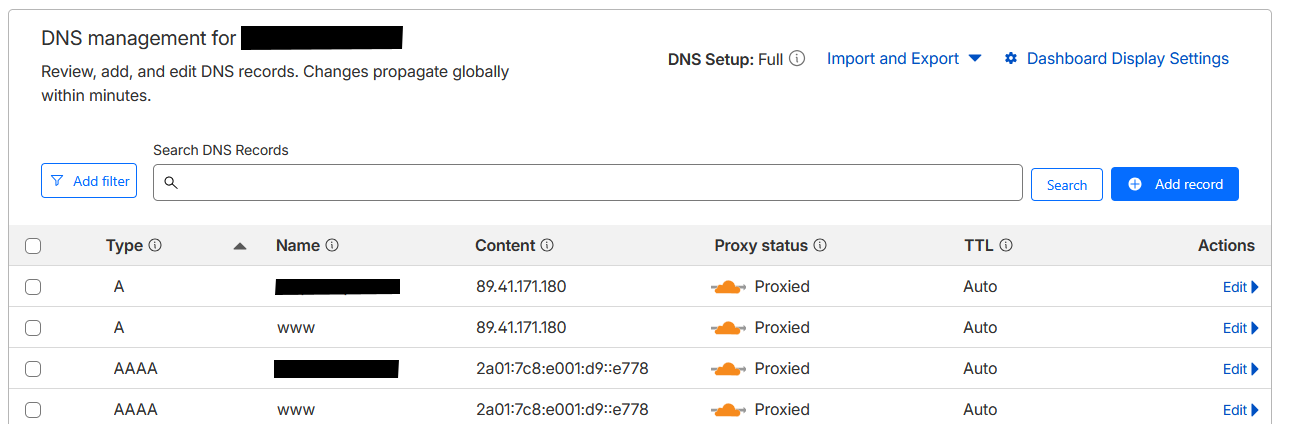
Cloudflare DNS settings
SSL/TLS configuration
Within Cloudflare, go to:
- SSL/TLS → Overview → Configure
Set the encryption mode to:
- Full
- or Full (Strict)
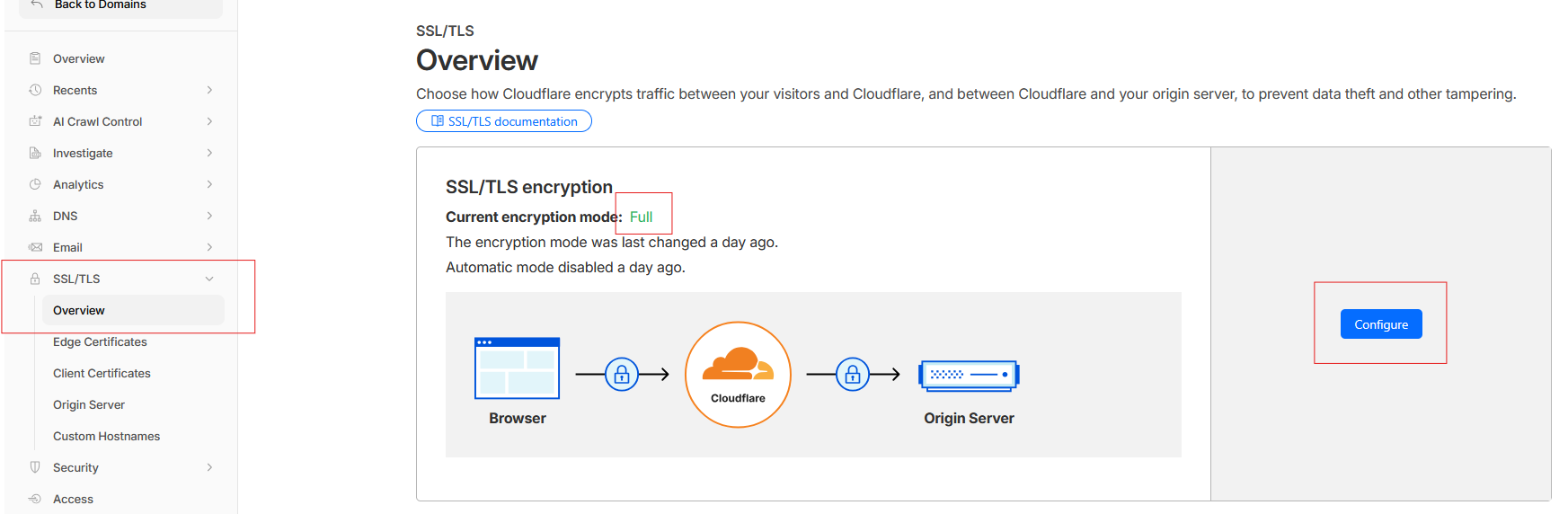
When SSL/TLS is set to Flexible, this often creates a redirect loop (ERR_TOO_MANY_REDIRECTS).
This happens because Cloudflare uses HTTPS towards the visitor, while using HTTP towards the origin server, whereas Clonable expects HTTPS.
See also the official Cloudflare documentation:
Validation
After DNS and SSL/TLS have been configured correctly:
- wait a few minutes for DNS propagation
- open the clone in your browser
- verify that Cloudflare headers are present, such as:
cf-raycf-cache-statusserver: cloudflare
- verify within Cloudflare that traffic is visible under:
- Security
- Analytics
- WAF Events
Common issues
ERR_TOO_MANY_REDIRECTS
Cause:
- SSL/TLS is set to
Flexible
Solution:
- change the encryption mode to
Full
502 or 504 errors
Cause:
- Cloudflare is blocking traffic from the Clonable proxy
Solution:
- let Clonable connect directly to the origin IP of your server
Clone works without Cloudflare, but not with Cloudflare
Check:
- DNS records
- SSL/TLS mode
- firewall rules/WAF configuration
- whether Clonable connects to the correct origin IP
Contacting Clonable
Please contact Clonable before enabling this configuration.
We need to internally verify that:
- the origin configuration is set correctly
- firewall and security checks are compatible
- the clone can function correctly behind Cloudflare