Cloudflare
It is possible to use Cloudflare together with Clonable, but this requires a specific configuration.
If the configuration is not set up correctly, this can lead to errors such as 502, 504, or ERR_TOO_MANY_REDIRECTS.
Using a provider with Cloudflare for SaaS and want to keep your own Cloudflare settings? Read the Cloudflare O2O explanation.
TL;DR
When placing Cloudflare in front of a clone:
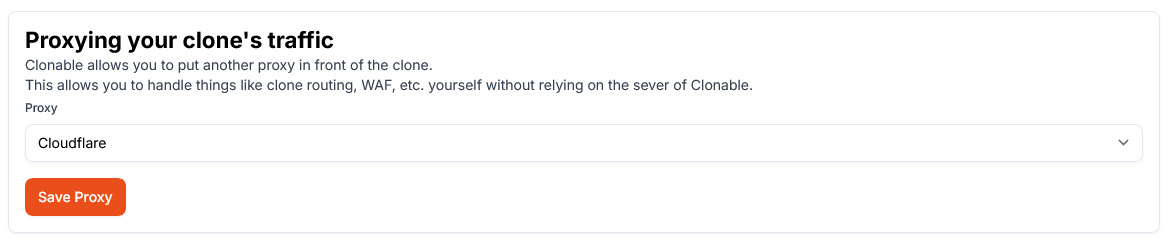
- in the Clonable dashboard, open your clone → Clone Settings → Proxy settings, select Cloudflare, and click Save Proxy
- make sure Clonable connects to the origin IP of your server
- place Cloudflare in front of the clone
- set the SSL/TLS encryption mode in Cloudflare to Full, or Full (strict) after creating a Cloudflare Origin Certificate and installing it through Clonable
When you select and save Cloudflare as the proxy, Clonable automatically applies the required internal checks and settings. Contacting Clonable support is no longer required, but we still recommend it to help check your configuration.
Why this is necessary
Many websites use Cloudflare for additional security, such as:
- DDoS protection
- WAF/firewall functionality
- Bot and spam filtering
- Rate limiting
Because Clonable operates as a reverse proxy, all clone traffic is routed through the Clonable proxy.
As a result, Cloudflare sees a large amount of traffic originating from Clonable instead of from individual visitors.
In some cases, this causes Cloudflare to block traffic from the Clonable proxy. This usually results in errors such as:
502 Bad Gateway504 Gateway Timeout- blocks triggered by the WAF/firewall
The solution is to let Clonable communicate directly with your origin server instead of with the Cloudflare proxy.
Recommended setup
The most stable configuration is:
Visitor → Cloudflare → Clonable → Origin server
In this setup:
- Cloudflare protects the clone
- Clonable communicates directly with the origin server
- Cloudflare no longer blocks traffic from the Clonable proxy
Placing Cloudflare in front of the clone
If you only use subfolder clones, these settings are usually not required. To let Cloudflare handle the subfolder proxy, follow the separate Subfolder proxy with Cloudflare Workers guide. It works for any type of website.
For clones running on a separate domain or subdomain, it is recommended to place Cloudflare in front of the clone.
Examples:
example.com/fr/→ usually not requiredfr.example.com→ recommendedexample.fr→ recommended
This gives each clone its own Cloudflare security layer.
Enable Cloudflare in Clonable
- Open your clone in the Clonable dashboard.
- Go to Clone Settings → Proxy settings.
- Select Cloudflare in the Proxy field.
- Click Save Proxy.
Clonable automatically configures the required settings on our side. You still configure DNS and SSL/TLS in Cloudflare, as explained below.
DNS configuration
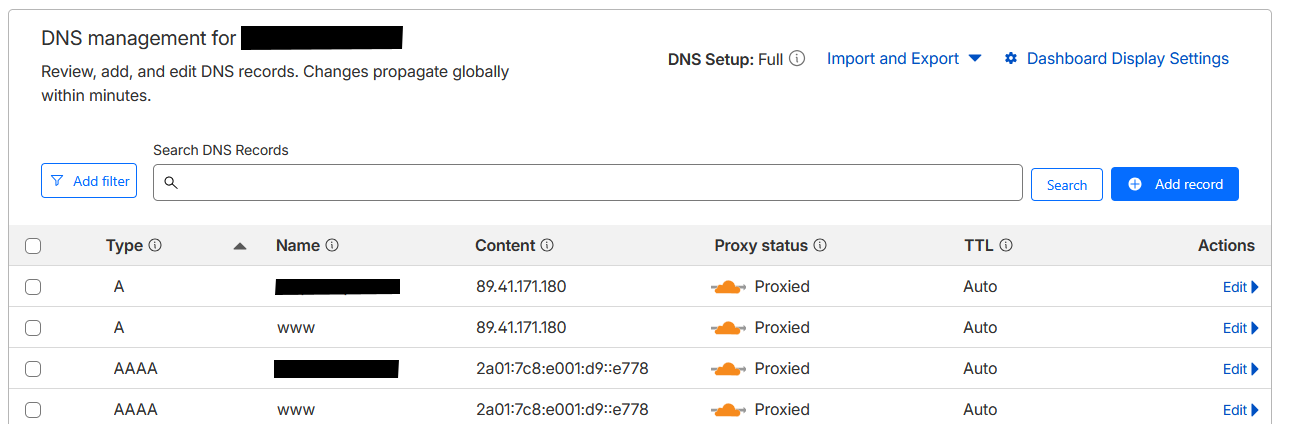
Within Cloudflare, go to:
- DNS → Records
Use the DNS values shown in your clone's Setup information tab in Clonable. Configure the DNS records so they are proxied through Cloudflare (orange cloud enabled).
Cloudflare DNS settings
SSL/TLS configuration
Within Cloudflare, go to:
- SSL/TLS → Overview → Configure
Set the encryption mode to Full. You can also use Full (strict), but first create a Cloudflare Origin Certificate and install it through Clonable, following the steps below.
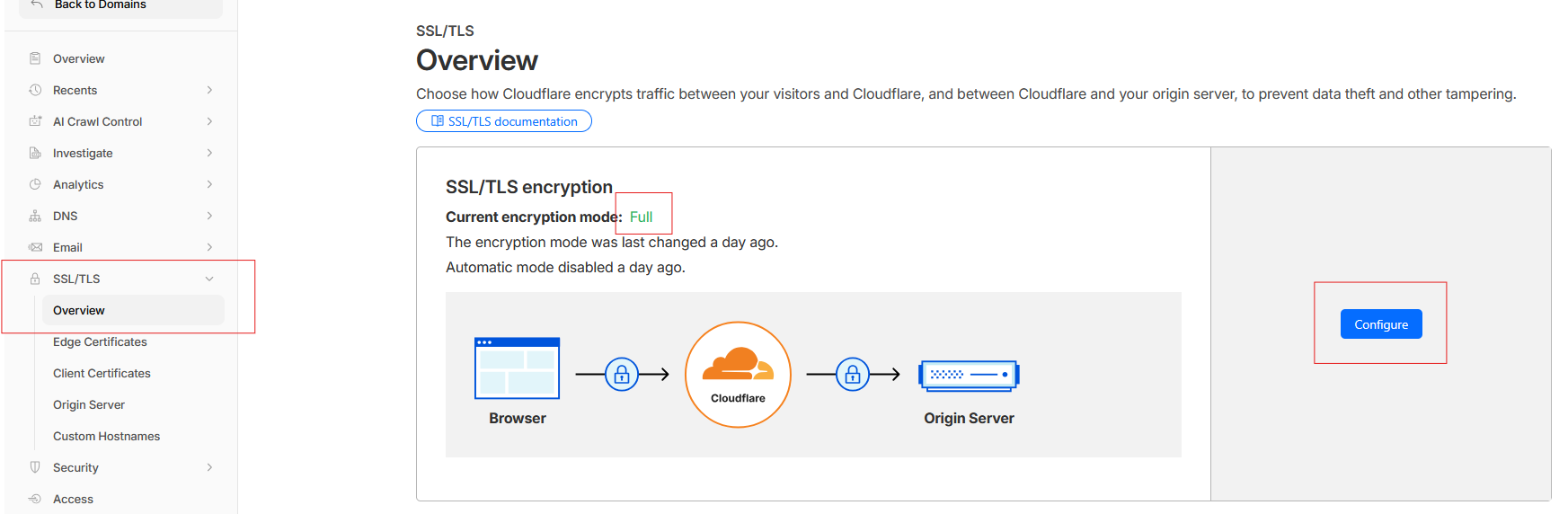
When SSL/TLS is set to Flexible, this often creates a redirect loop (ERR_TOO_MANY_REDIRECTS).
This happens because Cloudflare uses HTTPS towards the visitor, while using HTTP towards the origin server, whereas Clonable expects HTTPS.
See also the official Cloudflare documentation:
Use Full (strict)
1. Create an origin certificate in Cloudflare
- Open the Cloudflare dashboard and select the domain used by your clone.
- Go to SSL/TLS → Origin Server → Origin Certificates.
- Click Create Certificate.
- Keep the default Origin Certificate Installation settings, including letting Cloudflare generate the private key. Check that the listed hostnames cover your clone's domain.
- Click Create.
Cloudflare displays the Origin Certificate and Private Key. Keep this page open until you have copied both values into Clonable. You cannot view the private key again after leaving this page.
See also Cloudflare's origin certificate documentation.
2. Upload the certificate to Clonable
- Open your clone in the Clonable dashboard and go to Clone Settings → Proxy settings.
- Make sure Cloudflare is selected and saved as the proxy. The certificate fields become available once Cloudflare is enabled.
- Copy the Origin Certificate value from Cloudflare into the Origin certificate field in Clonable.
- Copy the Private Key value from Cloudflare into the Private key field in Clonable.
- Save the certificate.
You do not need to remove whitespace yourself: Clonable automatically removes unnecessary whitespace. Clonable validates the certificate before uploading it. If validation succeeds, the certificate is uploaded.
3. Wait for deployment
When you see Certificate saved, the certificate has passed validation and is being uploaded to our servers. It usually takes 2–3 minutes for the certificate to be updated on our servers.
The Certificate saved message does not mean the certificate is already active on every server. Keep the encryption mode set to Full until the certificate has been deployed.
4. Enable Full (strict)
After deployment, go to SSL/TLS → Overview → Configure in Cloudflare and select Full (strict). Open your clone to check that it works correctly.
Full (strict) also checks that the certificate on the Clonable server is valid and matches the hostname. See Cloudflare's Full (strict) documentation.
Validation
After DNS and SSL/TLS have been configured correctly:
- wait a few minutes for DNS propagation
- open the clone in your browser
- verify that Cloudflare headers are present, such as:
cf-raycf-cache-statusserver: cloudflare
- verify within Cloudflare that traffic is visible under:
- Security
- Analytics
- WAF Events
Common issues
ERR_TOO_MANY_REDIRECTS
Cause:
- SSL/TLS is set to
Flexible
Solution:
- change the encryption mode to
Full
502 or 504 errors
Cause:
- Cloudflare is blocking traffic from the Clonable proxy
Solution:
- let Clonable connect directly to the origin IP of your server
Certificate errors after enabling Full (strict)
Check that the certificate was successfully saved, that you waited 2–3 minutes for deployment, and that the certificate covers your clone's domain and has not expired. Enabling Full (strict) before a valid certificate is active can cause a Cloudflare 526 error.
Clone works without Cloudflare, but not with Cloudflare
Check:
- DNS records
- SSL/TLS mode
- firewall rules/WAF configuration
- whether Clonable connects to the correct origin IP
- whether Cloudflare is selected and saved under Clone Settings → Proxy settings
Contacting Clonable
Contacting Clonable is no longer required: the proxy setting automatically applies the necessary internal checks and settings. We still recommend contacting us if you would like help checking that:
- the origin configuration is set correctly
- firewall and security checks are compatible
- the clone can function correctly behind Cloudflare