Access logs
A visitor reports that an image on your Clone failed to load. Use the access logs to check whether the request reached your Clone and which HTTP status code the visitor received.
Open the access logs
- Sites & Clones
- Site settings
- Access logs
The Site settings cog is on the card for the site your Clone belongs to. Its menu includes Access logs when available. If you are already in the site settings, open Access Logs under Settings in the sidebar.
Find a request
- Select your Clone under Clone. Choose All clones to see requests for every Clone on the site.
- Click the time range next to the clock icon. It defaults to Last hour. Choose a preset, or enter From and To under Absolute time range and click Apply time range. You can view up to 6 hours at a time.
- Under Request log, look for the path, for example
/missing.png. The status code immediately after the request tells you what the visitor received. A404means the file could not be found at that path.
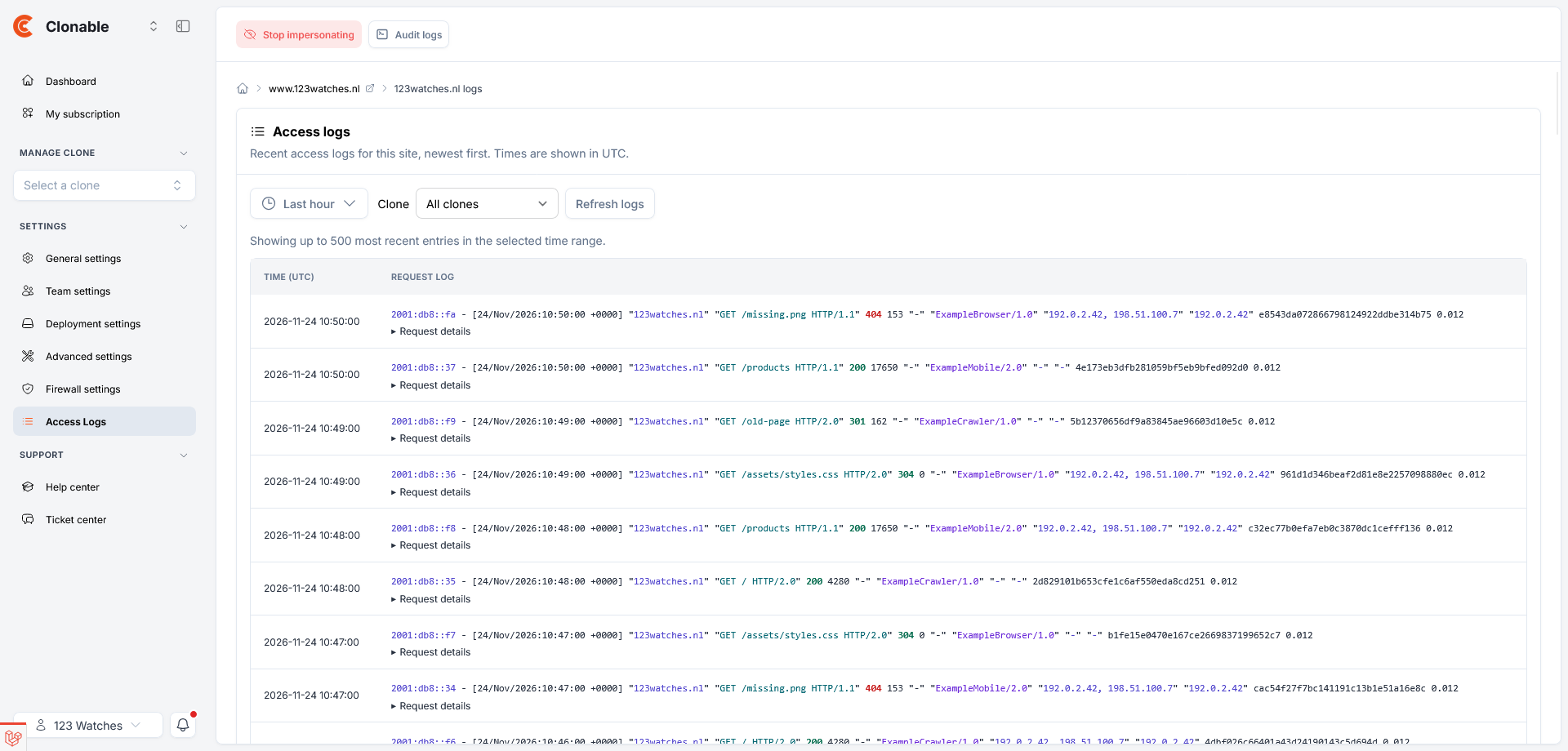
Example using Amsterdam winter time
The visitor saw the error at 14:15. If your browser uses Amsterdam time, try 14:10–14:20. The filter uses your browser’s time zone. In winter, the same request appears at 13:15 in the Time (UTC) column.
The table shows the 500 most recent requests within your selection. If the request is missing, narrow the time range or select the specific Clone. Use Refresh logs to reload the same selection. Where a row has Request details, expand it to see more information.
Investigate frequent requests
If your Clone receives a burst of requests, select the Clone and the time range when you saw the traffic. In the Request log column, compare the Client IP and User agent values to see which appear often. The user agent identifies the browser, app or bot as reported by the request.
If Top request sources is available under Logs volume, click Client IP or User agent to see which values have the most requests in your selection.
If requests from a particular IP address are causing problems, add that address to your site’s Denylist. Follow the steps in Firewall settings.